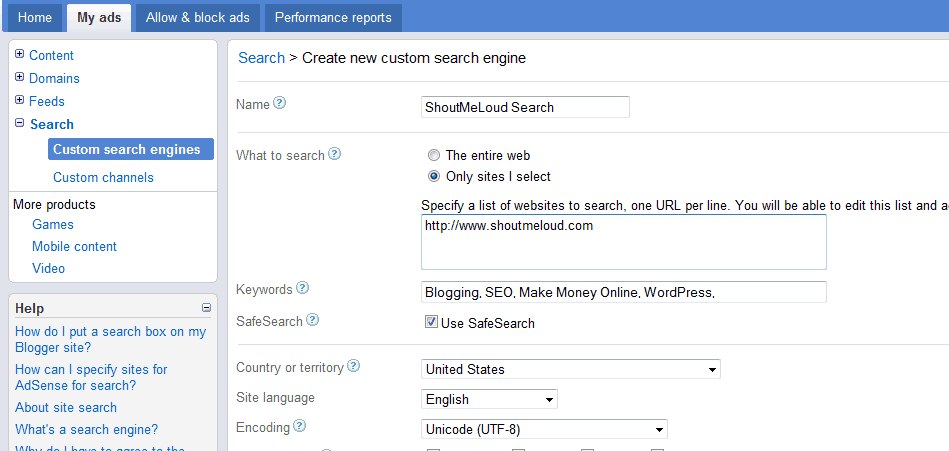
1) Open your Adsense account, click on “My Ads”, select “Search” from left, click on “Custom Search Engines” and Click “New custom Search Engine”.
2) Fill your name, keywords and all the other data.
3) In “What to Search”, select “Only Sites I select” and write the complete URLs (Including http://) of the sites you want to search. You may only add your site to show results from your blog/site.
4) In “Search Results and Ad location”, scroll to “Search Results” and select “On my website using an iframe”.
5) Now login to WordPress dashboard and create a new WordPress page. This page will be the place where the search results would be shown. It’s better to create a page name with “Search” and don’t forget to use noindex tag for that page. So lets assume your page name is domain.com/search
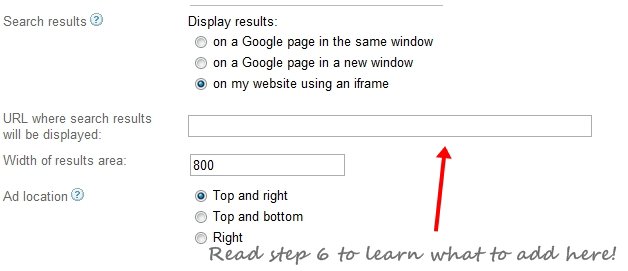
6) So in above image, in URL Field, you will be adding http://domain.com/search. Replacing domain name with your actual domain name.
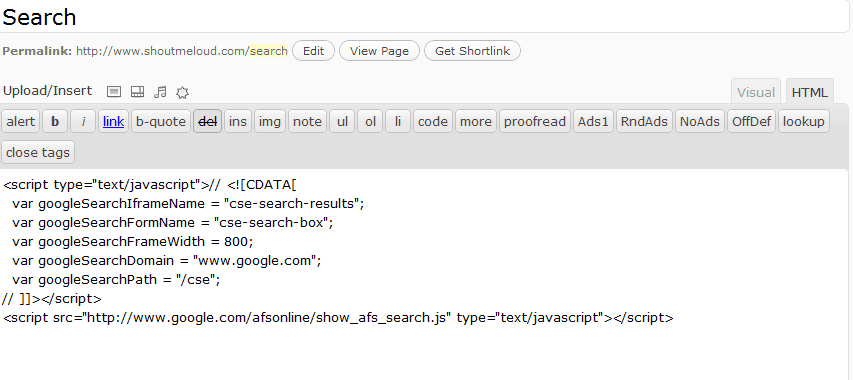
7) Click on “Save and get code”. You will get 2 codes. The 1st code is for displaying the search box and the 2nd one is to be added in the page where you will like to show the search results i.e the page you create in 5th step.
8 ) Open your WordPress Dashboard and open html editor of the page you created in 5th step. Paste the 2nd Adsense you got in previous step.
9) Create a text widget and paste the 1st Adsense code.
10) All is well! You are done, Start earing from Search results.
[*] If your search box is looking big, find “size=” in the 1st Adsense code and set its value to lesser amount.
Many Adsense publishers claimed that search box helps them to generate a good revenue. You can always configure ad placement for search while configuring the ad or edit the already created channel from dashboard.
Do let us know if you are using Adsense for search and are you showing search result on your blog page or you letting your readers to move away from your blog?
nice website thanks for sharing Hindbiz
ReplyDelete